
What just happened
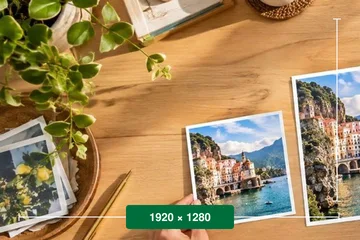
You gave the page two numbers and it wrote a file with that many pixels in it. In between, four things happened in this tab: the file was decoded, its orientation tag was settled so a phone photo does not arrive on its side, the pixels were resampled to your target, and the result was handed to a JPG, PNG or WebP encoder. The download link points at memory in this browser. Nothing was sent anywhere, because there is nowhere for it to be sent.
The chain between the two fields is on when the page loads. With it on, you type one number and the other one follows from the shape of your picture — it is printed in a lighter weight so it is always obvious which number is yours. Turn the chain off and both fields are yours, which is the moment Fit, Fill, Pad and Stretch start to matter.
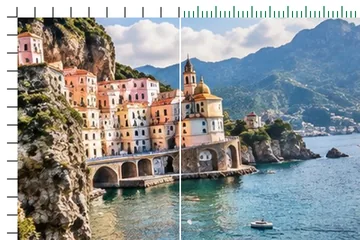
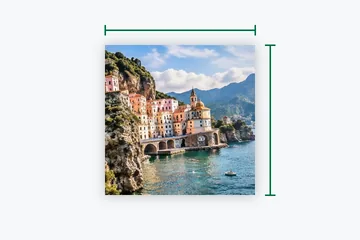
Rounding is to whole pixels, half up, because a file cannot have 449.6 rows. When that rounding pushes the result more than half a percent off the shape you started with, the page prints the ratio you actually have underneath the fields. A 1999 × 1125 original is not 16:9, and 1920 × 1080 taken from it is not the same shape as its source. You should hear that from this page, not from an editor three steps later.
Fit, fill, pad, stretch
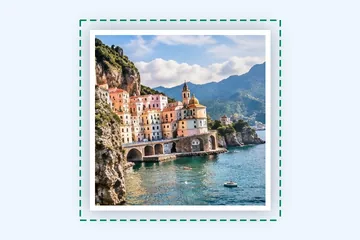
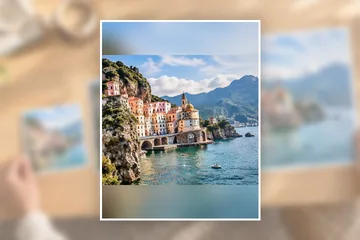
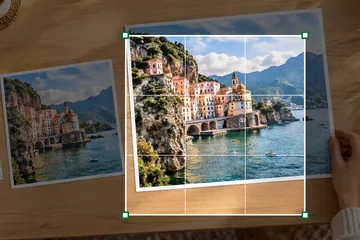
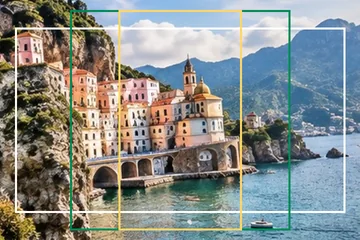
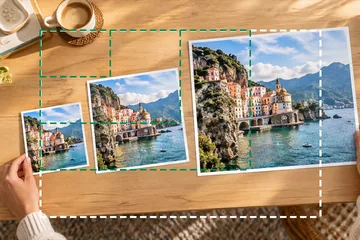
These four are the whole reason a resize can surprise you, and almost nobody knows which one they want until they see what each does to their own photograph — which is why each is drawn from your own picture beside its button. Take a 3:2 photo and ask all four for 800 × 600.
| Mode | What you get | What it costs |
|---|---|---|
| Fit | 800 × 533 | Nothing is cut and nothing is added. The height is not the number you typed. |
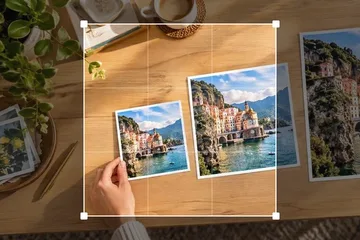
| Fill (cover) | 800 × 600 | You get the box exactly. A strip of the picture is discarded to do it — the canvas shows it ghosted. |
| Pad | 800 × 600 | You get the box exactly and all of the picture. A 33-pixel margin goes on top and bottom. |
| Stretch | 800 × 600 | You get the box exactly. Everyone in the picture is 12% wider than they were. |
Fill decides what to discard with the nine-point grid, or by dragging the picture inside the frame on the canvas; Pad uses the same grid to decide where the margin goes. Centre is the default because it is right most of the time; top-centre is one tap away because it is right for anything with a face in it. The box keeps its shape either way — this is positioning, not a free-form crop. The longer version, on one photograph, is in the guide.
The four modes step aside while the chain is on. Under a locked ratio all four produce identical pixels, and a control that is live but changes nothing is a lie told by a user interface.
Files this page opens
JPG, PNG, WebP, GIF, BMP and ICO are read by the browser itself. TIFF is opened by Safari natively and, everywhere else, by this page's own TIFF reader — uncompressed, LZW, PackBits or Deflate; grey, palette or RGB, 8 or 16 bits — which says by name what it cannot read (JPEG-in-TIFF, CMYK). An SVG has no pixels of its own, so it is drawn from its vectors at 2048 to 4096 pixels on the long edge and resized from that, with a note saying so; it is loaded as an image, so no script inside it runs. AVIF is recognised on the way in, but the decode is the browser's and not every browser has one — where yours does not, the file is declined by name rather than opened into something wrong. HEIC — what a recent iPhone shoots unless it was told otherwise — needs a decoder no browser ships, so this page carries one and loads it the first time a HEIC arrives and at no other moment. That costs a one-off download of about a megabyte and a half before the picture opens; every later HEIC in the same tab skips it. Files up to 120 MB are accepted. Past about 32 megapixels the page offers you a lighter working copy rather than risking the tab, and that offer is a question with two equal answers, not an error.
Where it stops is worth saying plainly, because a tool that quietly does the wrong thing costs more than one that refuses:
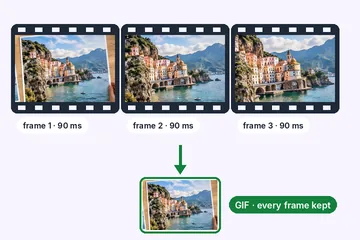
- An animated GIF or WebP is declined by the resizer: it handles one frame, and handing back a still under the same file name would be a worse answer than saying no. Animated GIFs have their own page, which resizes every frame and keeps the timing.
- The working space is 8-bit sRGB. A photograph in a wider colour space comes back flattened into sRGB, which most people will never see and a colourist will.
- A four-ink print JPG is spotted from its Adobe marker and the page says so, but the browser has already converted it on the way in and the colours have already moved.
- Above roughly 16,000 pixels on one edge the allocation fails on most machines, so the fields stop there instead of producing an empty file.
- Transparency and JPG cannot both happen. Choose JPG with a see-through picture open and the warning arrives before you press the button, not after.
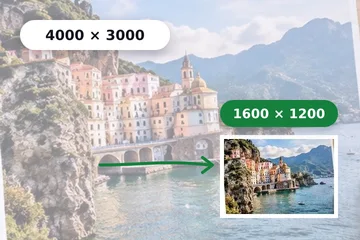
Making a picture smaller throws pixels away. We choose the order of operations that throws away the least, and there is no setting on this page that gets them back — a 4000 px photo resized to 800 and then back to 4000 is not the photo you started with.
What each format costs on the way out
The format control in the Export panel has four main entries, plus AVIF where your browser can write it, and they are not interchangeable. On a photograph the choice you make there usually moves the file size more than the two numbers you typed do, and one of the four can quietly destroy something the resampler was careful to keep.
| Save as | What it keeps | What it costs |
|---|---|---|
| Same as I opened | The container you arrived with, so a PNG leaves as a PNG. | Nothing is decided on your behalf, which also means nothing is improved on your behalf. |
| JPG | Photographs, at whatever the quality slider says. | No transparency at all, and a fresh generation of encoder loss every time you save. |
| PNG | Every resampled pixel exactly as computed, see-through areas included. | Several times the bytes of a JPG once the subject is a photograph rather than a diagram. |
| WebP | Both of the above, usually at around half what the JPG weighed. | A short list of older programs still will not open one, and a few browsers cannot write one. |
| PNG · fewer colours | Every pixel, on a palette of 256 colours or fewer — often a fraction of a full PNG for logos and screenshots. | Lossy: gradients and photos can band. Offered as chips under PNG, and said so beside them. |
| AVIF | Smaller than WebP at the same look, written by the browser's own encoder. | Only shown as available where this browser can actually write it — checked by encoding a test picture. Many cannot yet. |
Whichever you pick, the size printed under the button is the encoded length of the blob this page is holding — it has already been written, so that figure is a measurement and not a projection. Move the quality slider and watch it settle. That is the only honest way to find the point where a smaller file stops being worth it.
Questions we get asked
Why is the second number greyed out?
Because the chain is on and that number is being worked out from the one you typed. It is greyed rather than disabled: type in it and the chain hands the derivation over to the other field. Press L to turn the chain off entirely.
I asked for 800 × 600 and got 800 × 533.
That is fit doing exactly what it says. Your photograph is 3:2 and the box is 4:3, so fitting it inside the box uses all 800 columns and only 533 of the 600 rows. Cover will give you 800 × 600 by discarding a strip; stretch will give you 800 × 600 by squashing everyone.
Which filter is running, and can I change it?
Auto, the default, runs repeated halvings — a box average, discarding half the pixels per axis per step — until the picture is within twice the target, then a single Lanczos3 pass lands it exactly. Going up it uses Mitchell. Smooth swaps the last step for Mitchell going down and bilinear going up, so nothing rings; Sharp skips the halvings and runs one area-weighted Lanczos3 pass either way, which keeps text and line art crisper at the cost of slight ringing. The chain that actually ran is printed in the receipt. The reasoning is set out in full here.
Will this get my file under a size limit in kilobytes?
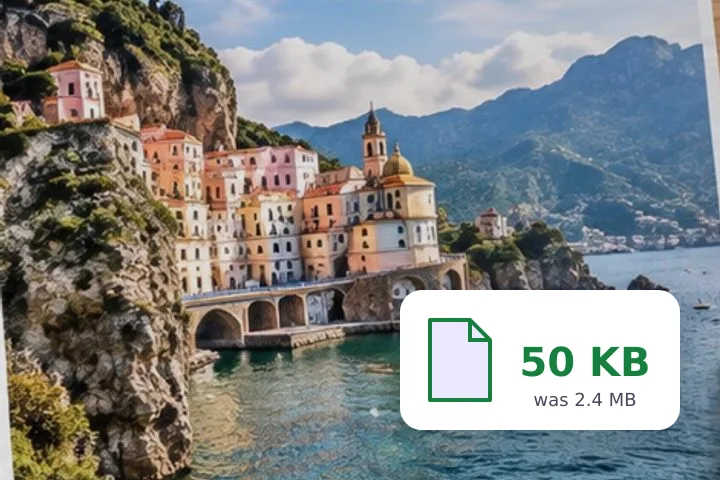
Usually fewer pixels means fewer kilobytes, but the two are not the same measurement and they do not move together reliably. What actually controls the kilobytes is the encoder and its quality setting. The number beside the button is the real encoded size of the file you are about to save, measured rather than estimated. If a form has given you a hard limit, pick it under File size: the page searches the quality for the best file under that many kilobytes, keeps the pixel size unless you allow it to change, and prints the exact bytes. Resize image in KB opens with that switched on.
My requirement is in centimetres, not pixels.
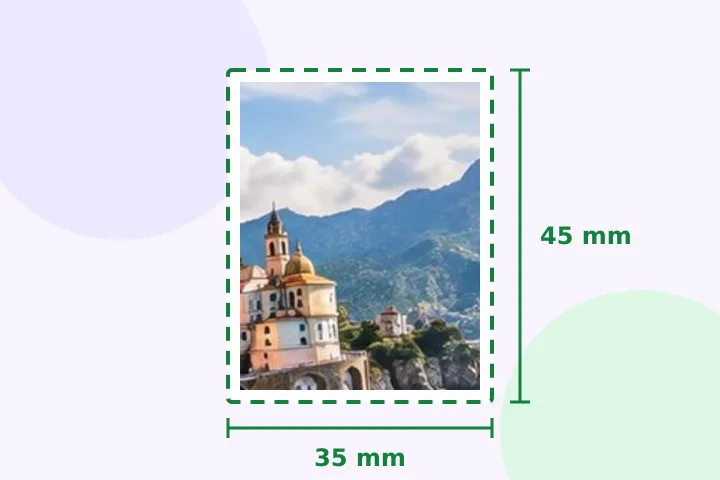
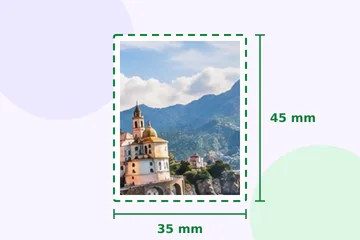
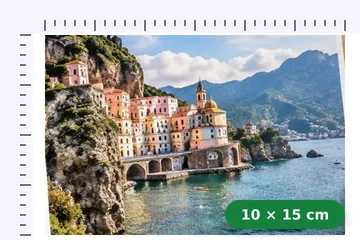
Choose cm under Size by, type the width and height in centimetres, millimetres or inches, and pick the DPI the form gives. The page prints the arithmetic — 3.5 × 4.5 cm at 300 DPI = 413 × 531 px — and resizes to those pixels. Writing the DPI into the file is a separate switch, and change DPI rewrites only that tag on a file you already have. Resize image in cm opens that way, and pixels and print size explains what DPI does and does not change.
What if I have two hundred files, not two?
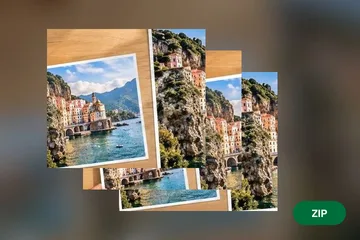
Drop them all at once, or open the Batch panel. One rule — long edge, box, percent or megapixels — applies to every file, a pixel box can turn itself for portrait pictures, and the results come back as one ZIP built in this tab. Bulk resize opens straight onto it.
Does the picture leave my machine?
No. The file is read by the browser, the pixels are resampled in a worker thread in this tab, and the result is written straight to your downloads folder. There is no upload step to skip because there is no server to upload to — this site is a set of static files and has no code running anywhere else.
After you have resized
Four sizes get typed often enough to have their own page here, already loaded, with the notes that belong to each: 1920 × 1080, 1280 × 720, 1080 × 1080 and 800 × 600. There is no page for every plausible pair of numbers, and there is not going to be one.
If something about the result surprised you, one of these three is probably the reason: fit, cover and stretch on one photograph; what a downscale actually discards; or pixels and print size, which is the one to read if a form asked you for centimetres. All three sit together here, with a line each on what they are for.
And if none of them is the reason, it is worth knowing what this page declines to do before assuming it did it badly. It will not invent detail a small picture never had, crop anything unless you open crop and resize, or write a DPI value into the file unless you ask. Those limits are set out with their reasons on the about page.